Getting the Thumbnails All Together

I have three window layouts that work nicely together to fill out the screen. See the screenshot attached.
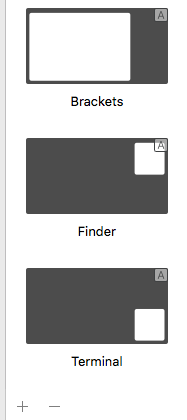
But when I drag windows and the Mosaic bar shows up, they all show up as three separate thumbnails. This takes up a lot of room, and it also is different from other layouts that seem to know to intuitively group together in one thumbnail (for example, I have four layouts that are each a different quarter of the screen, and those ones all show up in one thumbnail in the dock). How do I get these layouts to show up as onhe thumbnail in the doc, not 3?
-

I have this question also. It is not obvious. When you look at the layouts there is none that have the 'panes' all in one. So they are defined separately. That 'A' has something to do with it - notice that the ones which has all 'panes' in one template don't have this. I thought it might be if you assign them all to the same group. But that not the case.
Ok I've got it. The 'A' means Automatic Layout. If you create normal layouts and assign to the same group then the panes which don't overlap will appear together in the same layout.
It would be nice if you could do this with automatic layouts. I understand it is a little more complex but not impossible (esp if '%' is used).
It would also be nice if Light Pillar participated in their forums a little more. If anything, no activity signifies to people tossing up between different window managers that this one is not active. Such as shame as I find it a nice solution to window management (I only just started using it 2 days ago so early days yet).
-
You're right, Brooke. This program is totally "not obvious" with respect to exactly how you configure it. I have been using it for years and although I have been able to finesse it enough to keep it useful, I still am completely confused on the difference between the auto layout, the quick layout, the standard layout, the grouping.
Yeah, my screenshot has the As in it. How did I even do that? Was I looking to do something else? How do I move those into not being "automatic." Plus, I just watched the video for how "automatic" works on their site where you ick a layout the first time... well, mine doesn't work like that. It just works like all the other panes do. Maybe it is something I did wrong "3 years ago" when I posted this... but, as you can see, no one from the company responded.
You're totally right for calling out Light Pillar for a lack of participation. Maybe there is a window management program where the support is better. -
From what I understand and have ascertained:
* Create an Automatic (or is that Advanced) Layout or normal one in Mosaic > Preferences > Layouts > +
Firstly I think what we are talking about is 'Advanced' layouts. Automatic are something different (see below)
* Advanced have 2 purposes - pixel specific for a specific monitor (choose px); Or (something completely different) as a percentage (choose %) to be able to apply to ANY monitor / resolution. Normal layouts are the same as % from what I can tell.
Unfortunately you can't switch between Normal layouts and Advanced. Technically this should be possible (if you say which monitor you are talking about). I'd suggest that the '%' form of advanced layout should be dropped and the other 2 (normal and px) presented logically
Most layouts are a screen divided up into sections (I will call them 'panes' though this is not technically correct). The layout builder should support this (rather than the current behaviour of creating independant layouts which form a screen divided up in to sections).
* The quick layout (default - CMD+Option+Shift+L) is to allow you to position your current window in one of the panes shown in a layout
* The automatic layout is where you can designate a pane for your application window to automatically position itself in. This only works for me if i hit CMD+option+Shift+A (default) though I would have thought it should work when the application opens. The first time this is performed for an app you get to choose the layout to use.
* Groups are layouts based upon the number of applications currently visible on the current desktop. So if you have 3 apps open, the '3 Apps, Common and All' groups of layouts show when you try to quick or automatic layout
I think this application is really useful and quite enjoy it. The developer(s) could really make something of it but their lack of support (in these forums at least) is really killing it. I would like to see three improvements / new features:
* Automatic to be applied upon application open
* Automatic all apps - when the CMD+Option+Shift+A is hit then all apps on current workspace are 'Automatic'ed
* Tiling - Extend automatic to multiple panes so that when there are multiple windows (I'm thinking Finder) they are tiled in to those successive panes.
** Maybe an idea is to define aspects for each app. Eg. Word, Internet browsers (Safari, Firefox, Chrome, ...), Excel, ... are defined to have a vertical layout with a min width of 800px. Finder has a checkerboard layout with min width of 400px. And so on. Then define a prority level so that Work has higher priortiy than Finder so they are layout first. Then an Automatic layout will try to meet these definitions. Maybe mutiple workspaces could be used.
** Perhaps co-related files could form groups. So any documents in the same directory (or sibling directory under some parent) are grouped together. I could imagine solicitors have client documents all grouped in the same folder. How amazing it would be for all these documents to tile themselves.
Some of these thoughts are potentially going beyond trying to keep this tool simple. But it is worth thinking about. But I think the developers have stopped thinking about it which is such a shame.
There are other Mac window layout apps out there - checkout https://www.slant.co/topics/526/~best-window-manager-for-mac
-
So I did see that LightPillar had a different place to actually submit support questions, and to be absolutely fair, they were very gracious and helped point me in the direction of some answers. They also told me that "
the forums are not monitored by our support. Light Pillar is a small business and it would be impossible for us to be active in the forums whilst fulfilling our other responsibilities."Seem a key is to know that the "A" layouts are, indeed, "Advanced" layouts, and these are not candidates to be grouped into those icons.When I mentioned that I found some of the terminology confusing, they offered the following:"We have failed somewhat in our terminology of groups because people get confused about the combining of layouts in each icon with the layout groups which are defining which layouts should be displayed under certain circumstances. I hope to clarify this in future updates."
"I put an article on the help centre describing how the layout icons are created because you can control it to some degree by arranging the layouts:"
https://lightpillar.zendesk.com/hc/en-us/articles/115000114943-What-determines-the-order-the-layouts-appear-in-the-panels-This was helpful, and may help others, too.

Please sign in to leave a comment.
Comments
5 comments